Get raster data
This pages shows how to use BeeSpatial to download the cropland data layer (CDL) raster for Centre County, Pennsylvania for the year 2021.
Choose locations
The first screen of BeeSpatial allows users to choose locations:
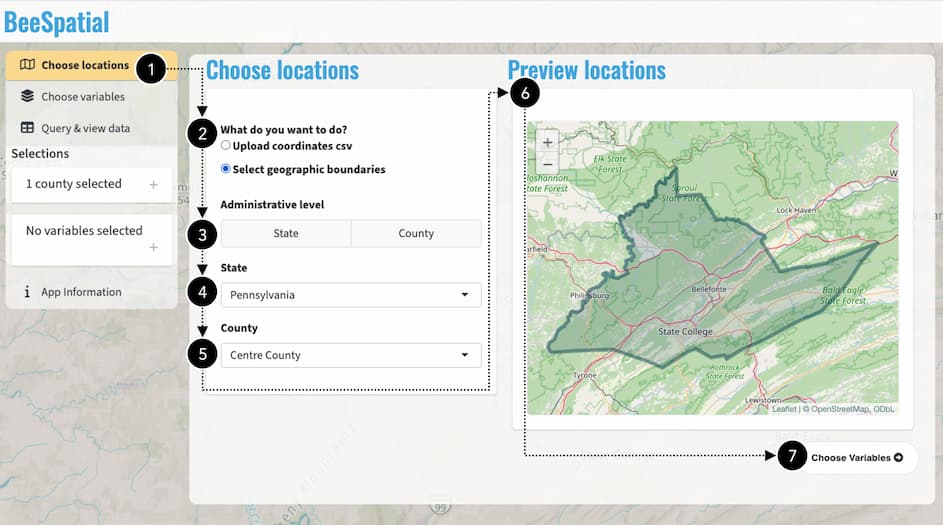
The user’s progress is indicated in the sidebar  . To download raster data, choose Select geographic boundaries
  in the “Choose locations” section. Since we are downloading a county, select “County” under Administrative level
  . Select the desired State
  (“Pennsylvania”) and County
  (“Centre”). The Preview locations map
  shows your selection. Once you’ve confirmed the correct boundary has been selected, use the navigation button Choose Variables
  in the lower right or the sidebar to move to the next step.
Choose variables
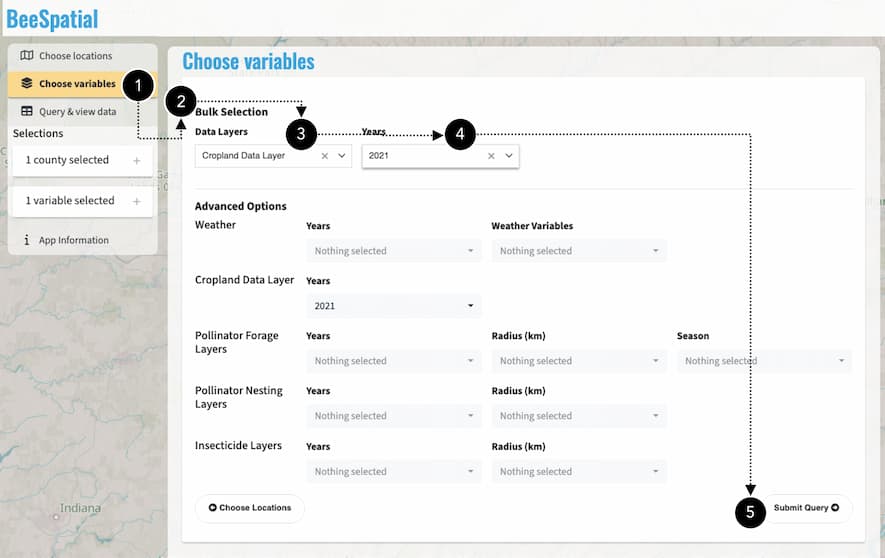
We’ve moved on to the Choose variable step in the sidebar . We are making a simple selection, so we use the Bulk Selection panel to select our desired Data Layers (“Cropland Data Layer”) and Years (2021). Note that if we wanted to make a more complex selection combining different layers and years, this can be done in the Advanced Options panel. We’re not doing this, so we move on to the next step Submit Query using the navigation button in the lower right, or the sidebar.
Query & View Data
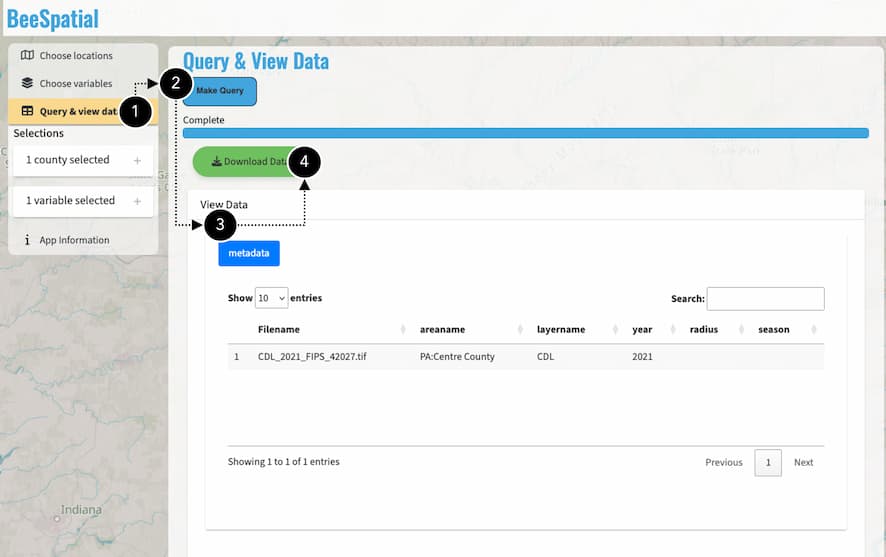
Query & View Data is the final step in the sidebar. With the desired locations and data layers selected, click the Make Query button to prepare the data download. Once the data are prepared, a data manifest appears in the View Data panel showing the data you are downloading. Finally, click Download Data to download a .zip file containing the requested data layers.